
How to Extract Images from a PDF as PNG Files
Extract embedded bitmap images from selected PDF pages, save PNG files or a ZIP, and distinguish image extraction from full-page rendering.
To extract pictures stored inside a PDF, open Extract PDF images, choose the file, optionally enter a page range and process it. FormatOwl decodes supported embedded bitmap images and saves them as PNG files, individually or together in a ZIP.
This operation is useful when you want a photograph without the surrounding page text. If you need the entire page exactly as it appears, use PDF to images instead.
Image extraction or PDF to JPG?
| What you need | Operation | Output |
|---|---|---|
| A bitmap photograph embedded in a page | Extract PDF images | Decoded image saved as PNG |
| Text, charts and pictures together | PDF to images | Full-page PNG or JPG render |
| Selectable words from a scanned document | OCR workflow | Recognized text / searchable PDF |
| Images combined into a document | Images to PDF | A new PDF |
The PDF image workflow guide helps choose between these tasks. Extraction does not automatically identify semantic objects such as “the chart”: a chart may be built from vector paths, text and several bitmap pieces.
Extract a representative page first
- Open Extract PDF images and select the PDF.
- Enter a page number or range, such as
2or2-4. Leave the field empty only if you want to inspect all pages. - Process the file and review the extracted images. A full-page scan may itself appear as one embedded bitmap.
- Download a sample PNG and compare its dimensions and appearance with the picture in the PDF.
- Download the remaining results individually or as a ZIP. Save them before leaving the page.
Output names identify the source page and an image index, for example page-2-image-1.png. The tool can extract at most 300 images in one run. If a document contains too many, reduce the page range and process separate sections. Also respect the displayed PDF byte and page limits.
What is preserved, and what is not?
The tool works from the embedded bitmap's decoded pixels, rather than taking a screenshot of the whole page. It then encodes a new PNG. It does not return the original JPEG stream, original filename or a guarantee of retained camera metadata.
Page-level text, labels, clipping and vector overlays are separate from the embedded image. An extracted picture can therefore differ from the composite appearance on the page. If a chart loses its labels or a photograph appears without a page-level crop, render that page instead.
PDF image resolution is limited by what the document actually contains. Extraction cannot recover a higher-resolution original that was discarded when the PDF was created.
Questions about PDF image extraction
Why are no pictures found?
The selected pages may contain only text and vector drawings, or use an image structure the extractor does not handle. Try a different page. Use full-page rendering when preserving the visible layout matters more than separating the bitmap.
Why are there fewer files than visible pictures?
A PDF can reuse an image object. The extractor skips already-seen shared objects where it can identify them, so the output count is not a count of every visual occurrence.
Can I get editable text too?
Image extraction does not perform OCR. For scanned text, follow the searchable PDF guide. For a different paper size, use PDF page resizing.
Are documents uploaded?
The tool is free without sign-up and processes the PDF in your browser. PDF resources may load from the site, but the source document is not uploaded for extraction.
Try one PDF page first and compare the PNG with the page before exporting the whole document.
More Posts

JPG to PDF, PDF to JPG, or Extract Images: Which Tool Do You Need?
Choose between building a PDF from images, rendering complete PDF pages and extracting embedded images, with practical resolution checks.

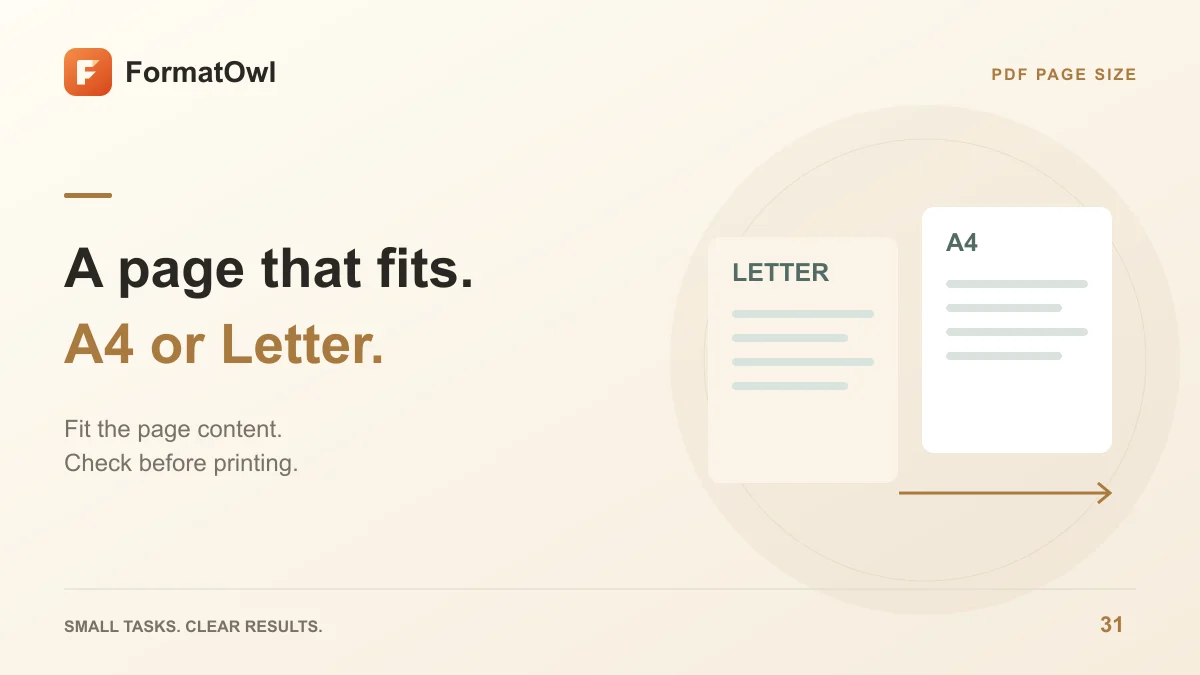
How to Resize PDF Pages to A4 or Letter
Change PDF page size to A4, Letter or custom dimensions. Fit and center content, choose page ranges and check orientation before printing.
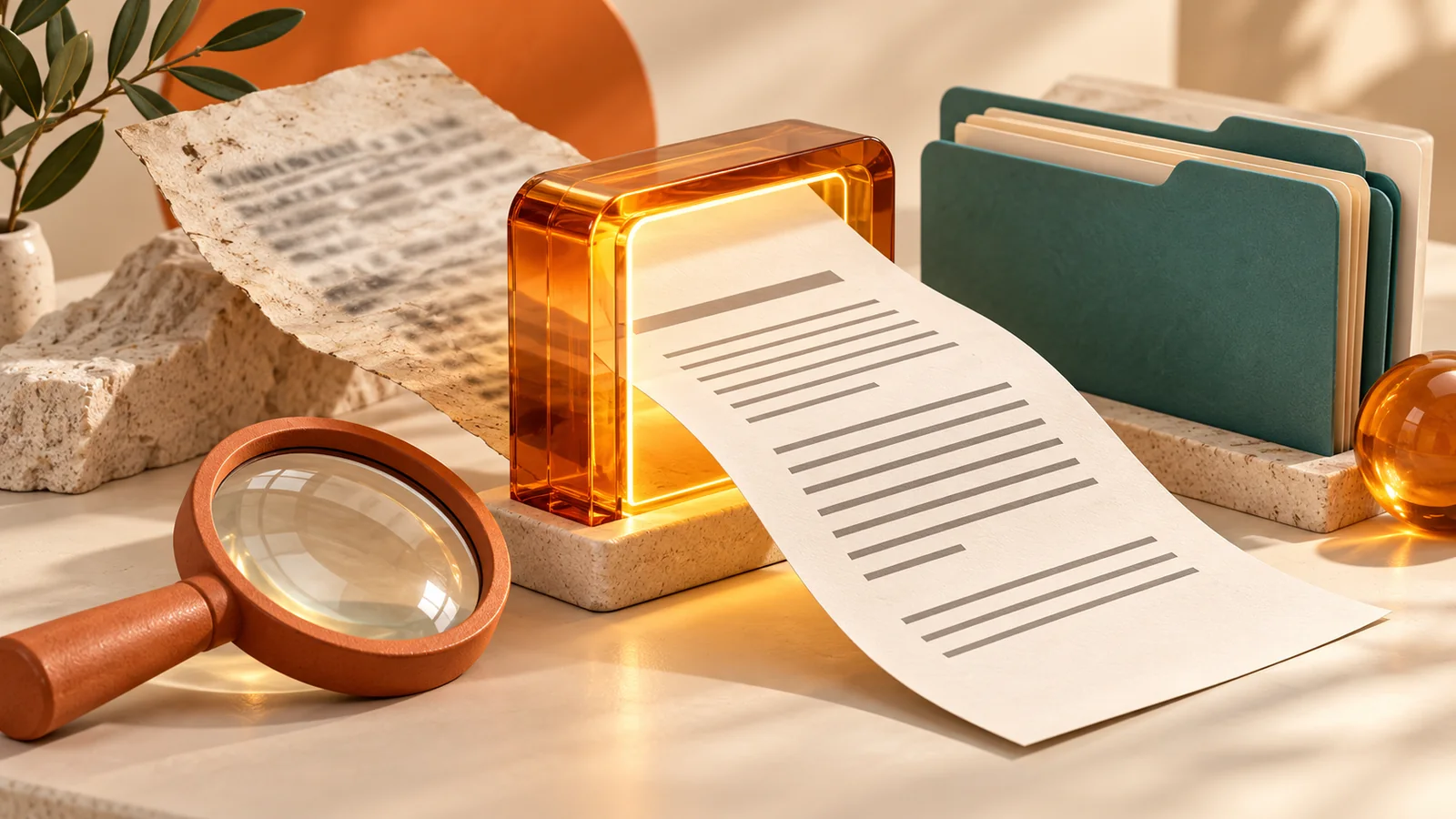
Make a Scanned PDF Searchable and Organize the Result
Learn when a PDF needs OCR, review recognized text, suggest filenames and choose between original-file copies and searchable PDF exports.
FormatOwl updates
Useful tools, practical tips
Get new FormatOwl tools, improvements and how-to guides.