How to Resize PDF Pages to A4 or Letter
Change PDF page size to A4, Letter or custom dimensions. Fit and center content, choose page ranges and check orientation before printing.
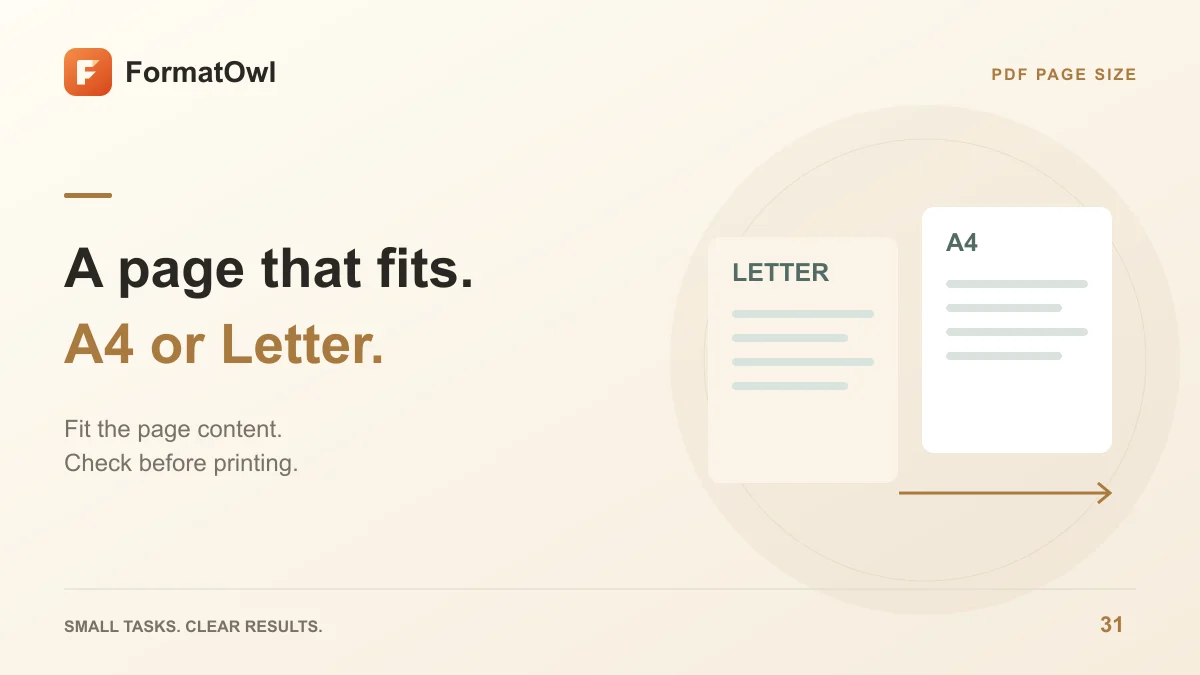
To change a PDF's paper size, open Resize PDF pages, choose A4 or Letter, select the pages to change and export the result. The tool scales and centers page content to fit the target page. It does not reflow paragraphs or compress the file to a target number of kilobytes.
This is useful when combining documents with different paper sizes or preparing a file for a destination that requires A4 or US Letter. Keep the original PDF and inspect the exported copy before printing or submitting it.
A4, Letter or custom dimensions?
| Target | Dimensions | When to use it |
|---|---|---|
| A4 | 210 × 297 mm; preset uses about 595 × 842 pt | A destination explicitly requires A4 |
| Letter | 8.5 × 11 inches; 612 × 792 pt | A destination explicitly requires US Letter |
| Custom | Width and height entered in points | A specific page canvas is required |
PDF points use 72 pt per inch. For a custom size in millimeters, multiply by 72 and divide by 25.4. For example, a 100 mm edge is approximately 283.46 pt. Enter points in the tool rather than typing a millimeter measurement into a field labeled pt.
A4 is narrower and taller than Letter. Fitting one onto the other can leave extra whitespace. Scaling to fit preserves proportions; it does not rearrange lines of text to use the new width.
Change PDF page size step by step
- Open PDF page resizing and choose your PDF.
- Select A4, Letter or Custom. For Custom, enter the width and height in points.
- Enter a page range if only part of the document should change; leave it blank for all pages.
- Decide whether to keep Match page orientation enabled. It can turn a portrait target size to landscape for a wide source page. Turn it off when the destination requires the same portrait canvas for every page.
- Process and download the new PDF. Check the first page, a dense page and any landscape pages.
- Open print preview or the receiving application. Verify paper size, legibility and margins before using the complete document.
If you selected only some pages, the others retain their original page sizes. Check the whole document when the submission rules require every page to match.
Inspect the result at the intended size
Small labels and footnotes become smaller when a large page is fitted to a smaller canvas. Zooming in can hide that problem, so also inspect the page at its intended print size. Avoid applying an additional “fit” scale in the print dialog without checking the preview.
For mixed inputs, use PDF merge to assemble the document, then decide which pages need resizing. If the source is a set of photographs, images to PDF can create an A4 document directly; the PDF image guide explains that route.
Questions about resizing PDF pages
Will resizing make the PDF smaller in bytes?
Not reliably. Paper dimensions and compressed file size are different properties. This tool does not offer “compress PDF to 200 KB” or another target-byte setting.
Will it fix blurry scans or enlarge text without changing layout?
No. Scaling cannot recover detail missing from a scan, and page fitting is not text reflow. If your goal is reading or recognizing text, consider the PDF reading and OCR guide.
Is the tool free and local?
Yes, it is free without sign-up within the displayed input limits. The document is processed in your browser; required PDF resources can load from the site. Save the exported copy before leaving.
Start with a representative PDF, choose the required paper size and verify a dense page before submitting the result.
Author
Categories
More Posts

JPG to PDF, PDF to JPG, or Extract Images: Which Tool Do You Need?
Choose between building a PDF from images, rendering complete PDF pages and extracting embedded images, with practical resolution checks.


How to Extract Images from a PDF as PNG Files
Extract embedded bitmap images from selected PDF pages, save PNG files or a ZIP, and distinguish image extraction from full-page rendering.
How to Merge PDF Files in Order and Check Every Page
Combine PDFs locally, extract only needed ranges, correct orientation and verify page counts before sharing the merged document.
FormatOwl updates
Useful tools, practical tips
Get new FormatOwl tools, improvements and how-to guides.