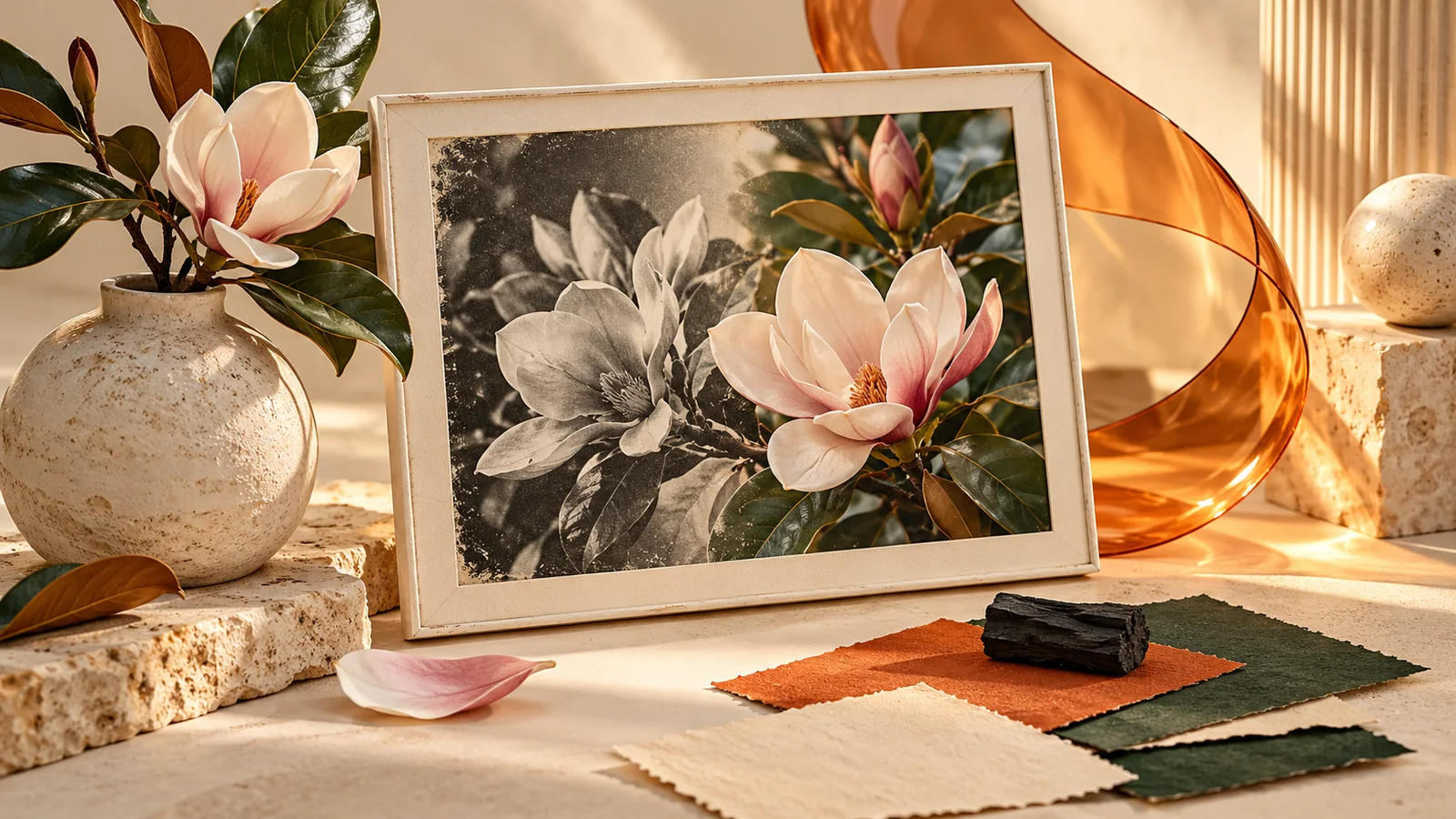
Colorize Black and White Photos: A Practical AI Guide
Learn how to colorize a photo locally in your browser, adjust color strength and export PNG. Understand AI color estimates, loading time and common problems.
To colorize a black-and-white photo, choose a clear scan, run an AI photo colorizer, inspect the estimated colors and save a separate copy. Keep the original alongside the result: a convincing color image is an interpretation, not evidence of the scene's original colors.
FormatOwl's Black & White Photo Colorizer runs locally in your browser. It accepts JPG, PNG and WebP and exports a PNG. You can adjust color strength and output size, then compare the result before downloading. Sign in with advanced trials or Pro to use it.
How does an AI photo colorizer work?
A grayscale photograph records light and dark values without enough information to identify every original color. Different colors can produce similar gray tones. The model estimates color from patterns in the image rather than retrieving missing historical facts.
FormatOwl uses the source image's lightness and adds model-estimated color information. This helps retain the photograph's light-and-shadow structure, but a uniform, wall, flower or item of clothing can still receive the wrong color. Skin tones also need inspection.
For a family album, save the result as a clearly labeled colorized copy. If relatives know the actual color of a dress or a car, compare their information with the output. The current tool has no brush for assigning an exact color to a selected object.
Prepare an old photo before colorization
Use the clearest scan or digital copy you have. A photo of a paper print should be evenly lit, in focus and free from avoidable glare. A screenshot of a small thumbnail gives the model less useful detail than the original scan.
Use image cropping to remove a scanner border or unnecessary surroundings. Keep faces and important objects intact. Avoid repeatedly saving a JPG at low quality before processing; compression artifacts remain part of the input.
| Source condition | What to expect |
|---|---|
| Clear grayscale scan | A useful starting point for estimating colors |
| Very faded or low-contrast print | Important regions may remain difficult to distinguish |
| Scratches, tears or missing areas | Damage is not repaired by adding color |
| Small thumbnail | Colorization does not recover lost resolution |
| Text, uniforms or branded objects | Check color and legibility against other evidence |
Colorization and restoration solve different problems. If the photograph is torn or badly scratched, repair a copy with an appropriate restoration tool before colorizing it. FormatOwl's colorizer does not include scratch removal, face reconstruction or upscaling.
How to colorize a photo in your browser
- Open Black & White Photo Colorizer and sign in. Choose one JPG, PNG or WebP photo.
- Start with color strength at 100%. This is the default. It gives you a baseline for deciding whether the estimated colors look too strong or too faint.
- Use the default 1280 px longest edge for the first attempt. The setting supports 256–2048 px and preserves the source proportions without upscaling.
- Start processing and allow the model to load. The first run downloads roughly 135 MB for the colorization model, plus runtime resources. A desktop browser and a stable connection are helpful; the first run can take minutes.
- Inspect faces, clothing, sky and object boundaries. Compare with the original and with any reliable color references you have.
- Adjust strength and process again if necessary. Download the approved PNG and save it separately from the original scan.
Download your result before closing the page. If you change the input or settings, process the new version before exporting it.
Adjust color strength without hiding the photograph
The control ranges from 0% to 150%, with 100% as the default. It scales the predicted color intensity, not the model's confidence or historical accuracy.
| Starting value | When to try it | What to check |
|---|---|---|
| 0% | View a neutral grayscale baseline | The original light-and-shadow structure |
| 50–80% | Colors look too strong, especially on skin | Whether a gentler version feels more balanced |
| 100% | First pass | Faces, fabrics and nearby color boundaries |
| 110–130% | The result looks too muted | Whether stronger color introduces unnatural patches |
These ranges are practical experiments, not guarantees. Increasing strength cannot turn an incorrectly predicted blue jacket into the correct brown jacket. Lowering it may make an incorrect hue less distracting, but does not correct its identity.
Check the image at the size you will share it, then inspect important details more closely. A thumbnail can hide color bleeding around hair, hands or a shirt collar.
Choose output size and file format
The longest-edge setting limits the output to between 256 and 2048 px. It never enlarges a small source: a 600 × 400 photo remains no larger than that even if you select 2048 px.
Output is PNG. Transparent input areas are filled with white, so this workflow is intended for photographs rather than transparent cutouts. A larger PNG can be normal; adding color changes the image data and the tool is not primarily a file compressor.
Keep the PNG as the edited copy. If an email or website needs a smaller file, convert a duplicate with image conversion or use image compression. Compare the final copy again before sharing.
Privacy, model downloads and slow first runs
The photo is processed on your device rather than uploaded to a remote colorization service. Network activity on the first run downloads the model and runtime. Sign-in, membership checks and export authorization still require access to the service; local processing does not make the whole website an offline application.
| Problem | What to try |
|---|---|
| Model loading fails | Check the connection and retry; changing photo size does not reduce the model download |
| Processing fails on a phone | Try a desktop browser or close memory-heavy tabs |
| Large output is difficult to process | Try a smaller longest edge; the model still has its own memory requirements |
| Colors look wrong | Lower strength, compare another source scan, or keep the original |
| Scratches remain | Use a separate restoration workflow; colorization does not remove damage |
See local file processing and network access for more detail about the privacy boundary.
Questions about black-and-white photo colorization
Is there a free photo colorizer trial?
Signed-in free accounts receive 20 nonexpiring welcome uses for advanced tools, then 3 nonrolling monthly uses from the next UTC month. The first authorized advanced export per task consumes one use. Previewing and failed processing do not consume a use; Pro users do not spend trials. See current plans.
Can AI recover the exact original colors?
No. The model estimates plausible colors from the visible image. Keep the original, compare with reliable references and describe the edited version as colorized when historical accuracy matters.
Does colorizing an old photo also sharpen faces or remove scratches?
No. This tool adds estimated color; it does not reconstruct faces, repair torn paper or increase resolution. Those tasks need separate editing tools.
Can I turn the colorized result into a painting?
Yes. Save the approved PNG, then open Photo Style Transfer. Keep separate original, colorized and styled copies so you can return to any stage. The photo-to-painting guide explains watercolor, oil painting and reference-image settings.
Start with one black-and-white photo, compare the default with a gentler color strength, and keep the version whose important details remain convincing.
Author
Categories
More Posts

How to Extract Images from a PDF as PNG Files
Extract embedded bitmap images from selected PDF pages, save PNG files or a ZIP, and distinguish image extraction from full-page rendering.

How to Convert PNG to SVG: Trace Logos into Editable Paths
Trace a PNG into SVG paths in your browser. Choose colors and detail, inspect the result, and understand white backgrounds and tracing limits.
How to Resize PDF Pages to A4 or Letter
Change PDF page size to A4, Letter or custom dimensions. Fit and center content, choose page ranges and check orientation before printing.
FormatOwl updates
Useful tools, practical tips
Get new FormatOwl tools, improvements and how-to guides.