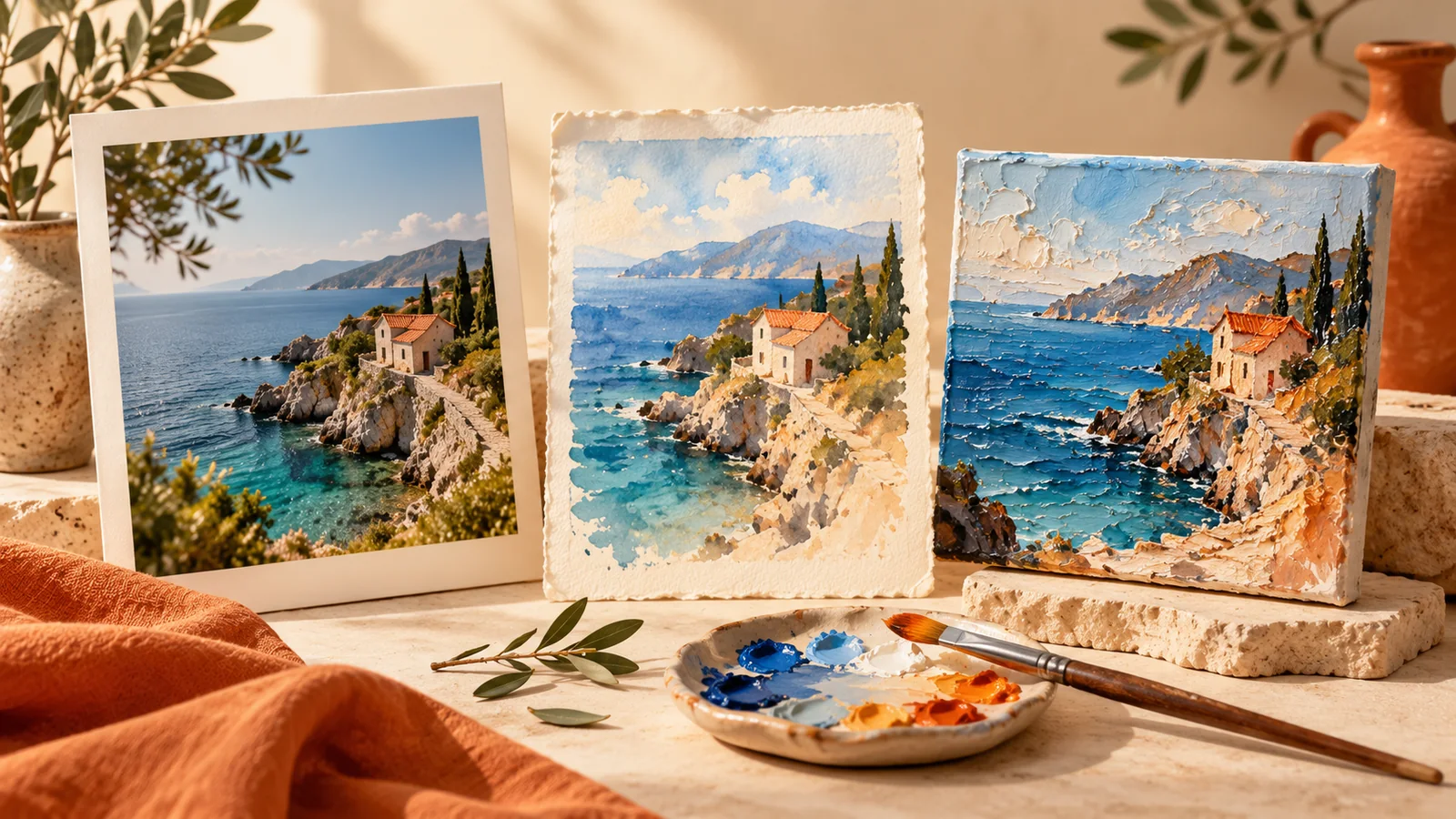
Photo to Painting: Watercolor and Oil Painting Effects
Turn a photo into a painting in your browser. Compare watercolor and oil effects, adjust style strength, use a reference image and export a PNG.
To turn a photo into a painting, start with a clear image, choose a painting style, adjust its strength and compare the result with the original before exporting. A useful result keeps the subject recognizable while changing the colors and texture.
FormatOwl's Photo Style Transfer applies oil painting, watercolor or woodblock-inspired effects in your browser. You can also supply your own reference image. It accepts JPG, PNG and WebP, processes one source photo at a time and exports PNG. Sign in to use advanced trials or Pro.
Choose a photo that will still read as a painting
Try a landscape with distinct foreground and background, a pet against a simple setting, or a portrait where the face is large enough to inspect. Tiny text, crowded backgrounds and small faces give you more details to check after stylization.
Crop away distractions with image cropping before applying the effect. Keep the source file: stylizing a copy gives you room to compare several versions without losing the photograph.
A good first experiment is one photo, two presets and the same strength. That makes it easier to see what the style changes. Changing the crop, strength and preset together makes the comparison less useful.
Photo to watercolor or photo to oil painting?
The preset names describe the reference artwork used for the transformation. The effect varies with the source; it does not reproduce a physical painting process or promise a particular artist's technique.
| Option | A useful starting subject | What to inspect |
|---|---|---|
| Watercolor | Landscapes, flowers, pet portraits | Whether pale details disappear into light areas |
| Oil painting | Portraits, buildings, still life | Whether stronger textures obscure eyes or small objects |
| Woodblock print | Scenes with a clear silhouette | Whether contours and large color areas remain readable |
| My reference image | A photo that needs a particular palette or texture | Whether the reference introduces unwanted colors or patterns |
For a photo-to-watercolor effect, try the Watercolor preset first and reduce strength if the subject becomes too soft. For a photo-to-oil-painting effect, compare a medium-strength version with the default before choosing the more textured result.
Treat these as starting points for inspection, not fixed recipes. A detailed landscape and a close-up portrait may need different settings even with the same preset.
How to turn a photo into a painting
- Open Photo Style Transfer and sign in. Choose a JPG, PNG or WebP source.
- Choose the style. Start with Oil painting or Watercolor. For a custom style, select My reference image and choose a second image containing the colors and texture you want to try.
- Set style strength. The default is 80%. Try 50–60% for a gentler comparison, then increase it if the effect is too subtle. These are suggested starting values, not automatic quality settings.
- Start at a 512 px longest edge. This is the default working size. Run the transformation and allow the first model download to finish.
- Inspect the preview. Check faces, outlines and recognizable details. Reduce strength or try another reference if a detail becomes distracting.
- Choose the final size and process again if needed. The longest-edge setting supports 128–1024 px. Download the approved PNG before closing the page.
Changing settings requires another processing run. Choose your final version before exporting if you are using a limited advanced trial balance.
Use a reference image without copying its subject
A reference image supplies a visual style. It is not a second subject to place into the photo, a face-swap source or a text prompt.
For example, a reference with muted greens and broad brush textures may be useful for a garden photograph. A reference filled with hard dark lines may push the same photo toward a more graphic look. Compare both at the same strength, then inspect the plant edges and the main subject.
Use a reference whose palette and texture you actually want in the output. The model does not offer separate controls for transferring only brushwork while locking every original color. If a recognizable logo, product label or face must remain exact, keep the original version for that purpose.
Pick an output size for the destination
| Setting | Current behavior |
|---|---|
| Style strength | 0–100%; default 80% |
| Longest edge | 128–1024 px; default 512 px |
| Output format | PNG |
| Small source image | Kept within its original dimensions; not upscaled |
| Transparent input | Transparent areas are filled with white |
A 1024 px longest edge can be useful for a small web illustration or profile image. It is not a high-resolution print master. A 400 × 300 source will not gain detail by selecting 1024 px; this tool does not upscale it.
Keep the PNG as your working copy. If your destination needs a smaller WebP or JPG, use image conversion afterward. See the image format guide before trading quality for a smaller file.
What stays on your device?
The style model runs locally in your browser. Your source photo and custom reference are not uploaded for processing. The first run downloads roughly 12 MB of model files, with additional runtime resources; the download size is not an upload of your pictures.
The website still uses network access for sign-in, membership and export authorization. Local image processing does not mean the entire service works offline. The privacy and local-processing guide explains that boundary.
If loading fails, check the connection and retry. If processing fails, try a smaller longest edge or close other memory-heavy tabs. A smaller output can reduce some work, but cannot eliminate the initial model download or guarantee compatibility with every device.
Questions about photo-to-painting tools
Can I turn a photo into a painting for free?
FormatOwl offers advanced trials to signed-in free accounts: 20 welcome uses that do not expire, followed by 3 monthly uses starting the next UTC month. The monthly allowance does not roll over. The first authorized advanced export for a task consumes one use; previewing or failed processing does not. Pro users do not spend trial uses. See current plans for limits.
Is this a watercolor filter or AI style transfer?
It uses a style-transfer model with a watercolor reference preset. You can adjust strength or supply a different reference. The output is a digital interpretation of the photo, not a hand-painted commission.
Can it generate a new picture from a written prompt?
No. It needs a source image and a preset or reference image. It does not offer text-to-image generation or instructions to add and remove objects.
Can it restore an old black-and-white photo?
Stylization changes the appearance rather than repairing damage. If your goal is to add estimated colors to a black-and-white photo, use photo colorization and read the black-and-white colorization guide.
Start with one photo-to-painting comparison: keep the crop and size fixed, compare Watercolor with Oil painting, and download the version that preserves the details you care about.
Author
Categories
More Posts

How to Extract Images from a PDF as PNG Files
Extract embedded bitmap images from selected PDF pages, save PNG files or a ZIP, and distinguish image extraction from full-page rendering.

How to Convert PNG to SVG: Trace Logos into Editable Paths
Trace a PNG into SVG paths in your browser. Choose colors and detail, inspect the result, and understand white backgrounds and tracing limits.
How to Resize PDF Pages to A4 or Letter
Change PDF page size to A4, Letter or custom dimensions. Fit and center content, choose page ranges and check orientation before printing.
FormatOwl updates
Useful tools, practical tips
Get new FormatOwl tools, improvements and how-to guides.