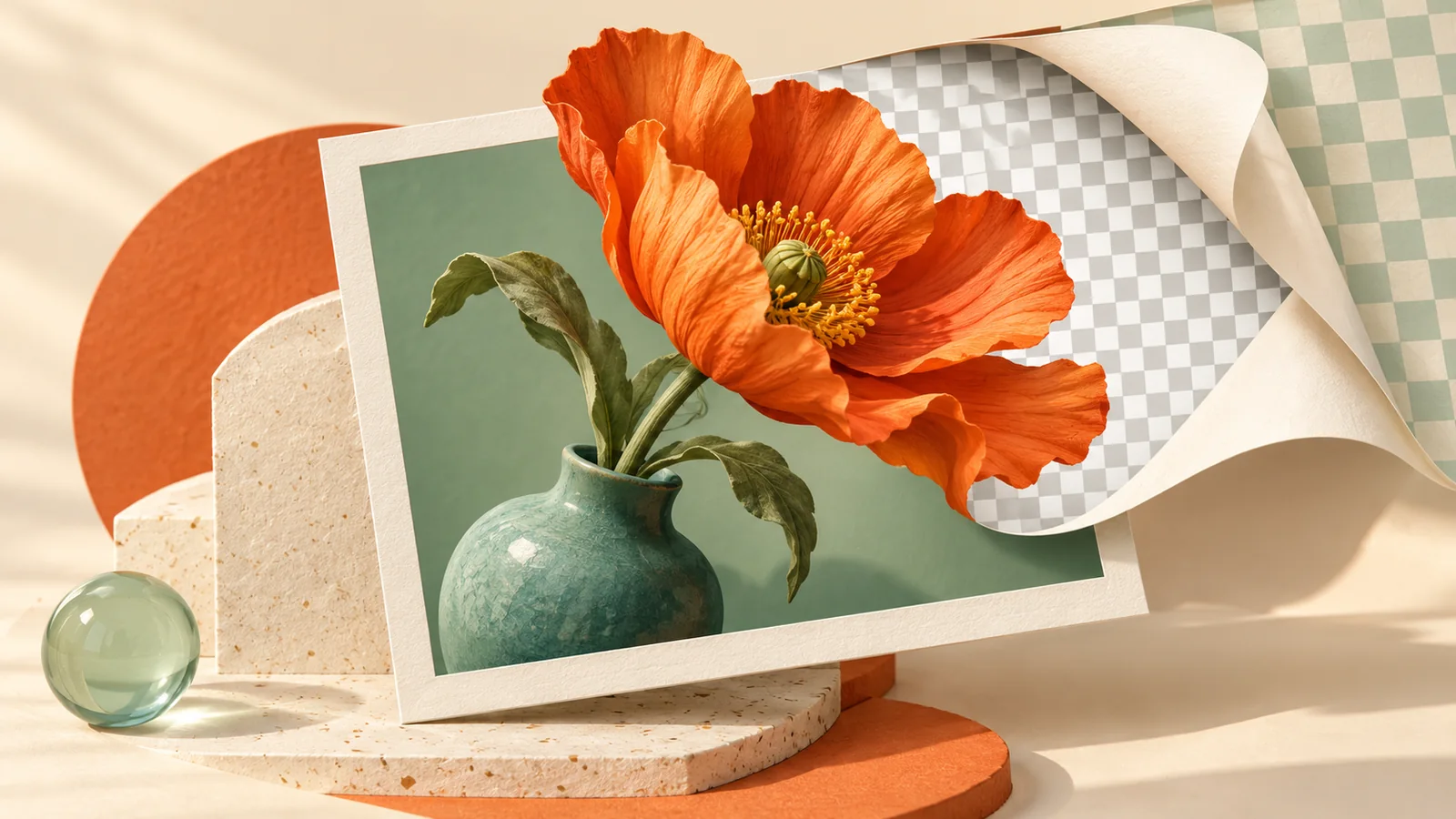
Remove an Image Background Locally and Check the Edges
Create a transparent PNG or WebP cutout, understand first-run model downloads and review hair, shadows and difficult transparent subjects.
A white background and a transparent background are different results. A transparent cutout can sit on a colored page without a white rectangle, but its edges still need inspection before you use it in a product card or banner.
FormatOwl's background removal tool runs a recognition model in your browser and exports PNG or WebP. It is available with advanced trials or Pro and accepts JPG, PNG and WebP inputs.
Choose a source with a clear subject
A subject that separates clearly from the background gives the model a more understandable boundary. Fine hair, glass, mesh, reflections and soft shadows can be difficult because the desired edge is not a simple solid line.
| Source feature | What to inspect after removal |
|---|---|
| Hair or fur | Missing strands and leftover fringes |
| Glass or translucent fabric | Incorrect opaque or missing areas |
| Product shadows | Shadows removed when you wanted to keep them |
| Similar foreground and background colors | Parts of the subject removed with the background |
| Several nearby objects | Whether every intended object remains |
Keep the original. An automatic cutout is an estimate of the foreground, not a guarantee that the model selected the same subject you intended.
Allow for the first model download
The first run needs to download the background-removal model. That network transfer brings resources to the browser; it does not send your input image to a remote recognition service.
Loading time and processing speed depend on the connection, device and available memory. Start with one representative image and wait for the model to finish loading before concluding that the tool is stuck.
Local processing does not mean the entire website works offline. Sign-in, membership and download authorization still need service access, as explained in the local-processing guide.
Export a transparent result
- Select the source image and choose PNG or WebP output.
- Start processing and allow the model to load.
- Inspect the subject's outline, internal gaps and small details.
- Download the result and place it over the actual destination background.
- Keep the cutout only if the important parts remain convincing.
A checkerboard preview helps reveal transparency, but the final background can expose pale or dark fringes that were less visible in the tool. Try the color used in your actual card or banner.
Prepare a product image or banner
Use image cropping to remove excess empty space when appropriate, and resizing to fit the destination. Preserve proportions so the product shape does not change.
The banner maker can combine the cutout with text and a background. Inspect the composite at its intended viewing size. A cutout that looks rough at extreme magnification may be acceptable in a small card, while a damaged product label may remain unacceptable at any size.
Do not convert the cutout to JPG if you still need transparency; that export fills transparent areas with white. See image format selection for other output considerations.
What to do when the cutout is wrong
Try a clearer source or a crop that focuses on the intended subject. If the model keeps removing an important edge, use a tool with manual masking controls or return to the original image. Repeating the same automatic operation does not guarantee improvement.
Avoid claiming a product detail has been preserved until you compare it with the source. Color, labels and the outline of the item matter more than a perfectly empty background.
Key takeaways
Use a clear source, allow the model to load, export transparency intentionally and check the cutout over its destination background. Start with one background-removal test before processing a collection.
More Posts

How to Extract Images from a PDF as PNG Files
Extract embedded bitmap images from selected PDF pages, save PNG files or a ZIP, and distinguish image extraction from full-page rendering.

How to Convert PNG to SVG: Trace Logos into Editable Paths
Trace a PNG into SVG paths in your browser. Choose colors and detail, inspect the result, and understand white backgrounds and tracing limits.
How to Resize PDF Pages to A4 or Letter
Change PDF page size to A4, Letter or custom dimensions. Fit and center content, choose page ranges and check orientation before printing.
FormatOwl updates
Useful tools, practical tips
Get new FormatOwl tools, improvements and how-to guides.