How to Scan a QR Code from an Image or Screenshot
Read a QR code from a saved image or screenshot without a second device. Decode locally, inspect the result and troubleshoot blur or missing edges.
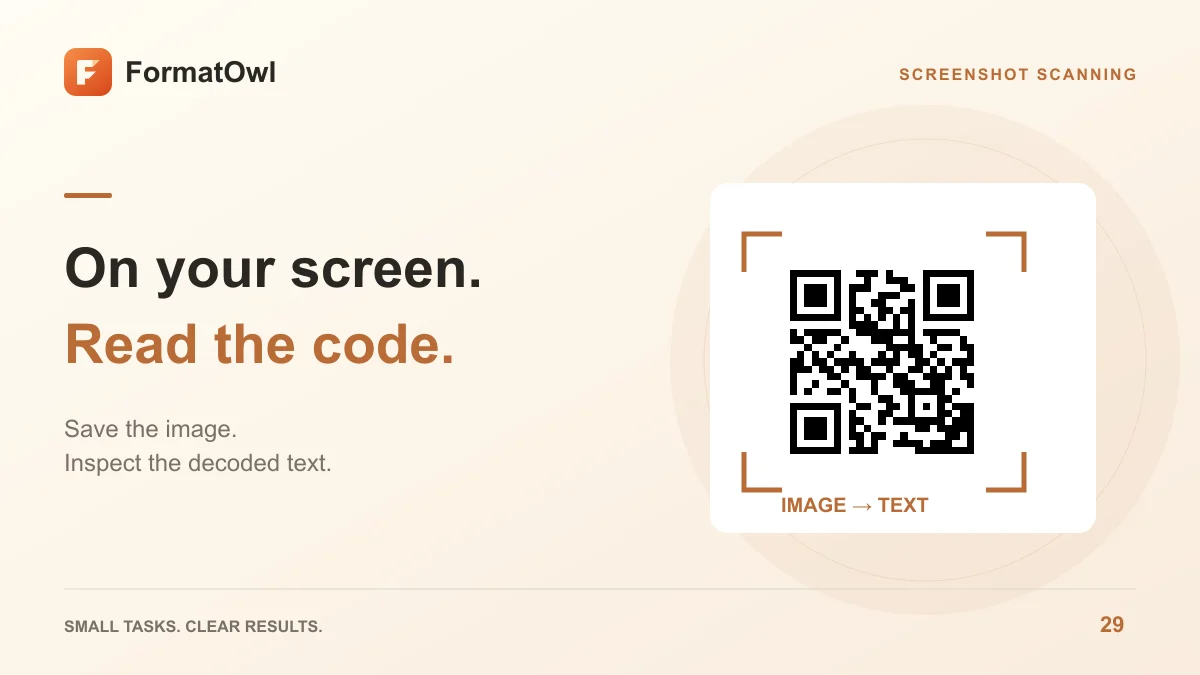
If a QR code is already on your screen, save the image or take a screenshot and open it in the QR scanner. The image workflow reads the code without needing another phone or camera permission. It shows the decoded contents so you can inspect them before opening a link elsewhere.
FormatOwl decodes the selected image in your browser. The tool is free without sign-up, within its displayed image limits. It does not require you to upload the screenshot to a processing server.
Capture an image the scanner can read
Keep all four edges of the QR code and the clear margin around them. If a screenshot includes a large webpage, crop away unrelated content while leaving that margin intact. Cropping through the outer modules can make an otherwise sharp code unreadable.
| Image problem | Try this | What it cannot fix |
|---|---|---|
| Tiny code in a full-screen capture | Get the original image or a closer capture | Upscaling cannot restore missing modules |
| Blurry photograph | Retake it in focus with even light | A larger file alone does not restore detail |
| Clipped border | Capture the full code and margin | Missing content is not reliably recoverable |
| Several codes in one picture | Crop and scan one at a time | This guide does not promise multi-code extraction |
Use a supported static image such as PNG or JPG. A screenshot is often easier to inspect than a photograph of the same screen because it avoids glare and perspective distortion.
Scan the image step by step
- Save the QR image or take a screenshot on the device you are using.
- Open QR scanning and choose the image file. You do not need to start the camera.
- Run the scan and wait for the decoded text.
- Read the complete result. For a URL, check the domain and path; for Wi-Fi or a contact, inspect the encoded fields.
- Copy the result only after checking that it is what you expected. The scanner does not automatically open decoded links.
For example, when testing a code you made for a menu, compare the decoded URL with your intended public page. A scan can succeed even if the destination is misspelled, private or no longer available.
Reading a code is different from completing its action
A QR scanner extracts a payload. It does not verify the owner of a website, repair an expired destination, sign you into an account or join a Wi-Fi network for you.
Some login codes are temporary and must be scanned inside the service's own app. Reading their text with a general image scanner does not complete that service's login flow. Likewise, a Wi-Fi payload still needs a compatible device and correct credentials; use the Wi-Fi QR guide to test a code you created yourself.
Questions about screenshot scanning
Can I scan a QR code on the same phone?
Yes, use a saved image or screenshot with the file picker rather than pointing that phone's camera at its own screen. File-picker details depend on your device and browser.
Why does the scanner say no readable code was found?
Check blur, resolution, clipping and the surrounding margin first. Try the original PNG instead of a compressed preview. If it is a linear barcode rather than QR, use the barcode scanner.
Does a successful scan prove a link is safe?
No. It proves the image contained readable data. Review the destination and its context before navigating or entering information.
Open the image scanner with one clear screenshot. If you are preparing printed material, also follow the static QR printing checks; an image scan alone does not test the final paper copy.
Author
Categories
More Posts

Static QR Codes: Expiration, Links and Printing Checks
Understand why static QR codes do not have an expiry timer, choose a stable URL and test the final PNG and printed design.

How to Create a Wi-Fi QR Code for a Guest Network
Create a Wi-Fi QR code from your network name, security type and password. Download a PNG, test a phone connection and prepare a guest Wi-Fi sign.

How to Extract Images from a PDF as PNG Files
Extract embedded bitmap images from selected PDF pages, save PNG files or a ZIP, and distinguish image extraction from full-page rendering.
FormatOwl updates
Useful tools, practical tips
Get new FormatOwl tools, improvements and how-to guides.