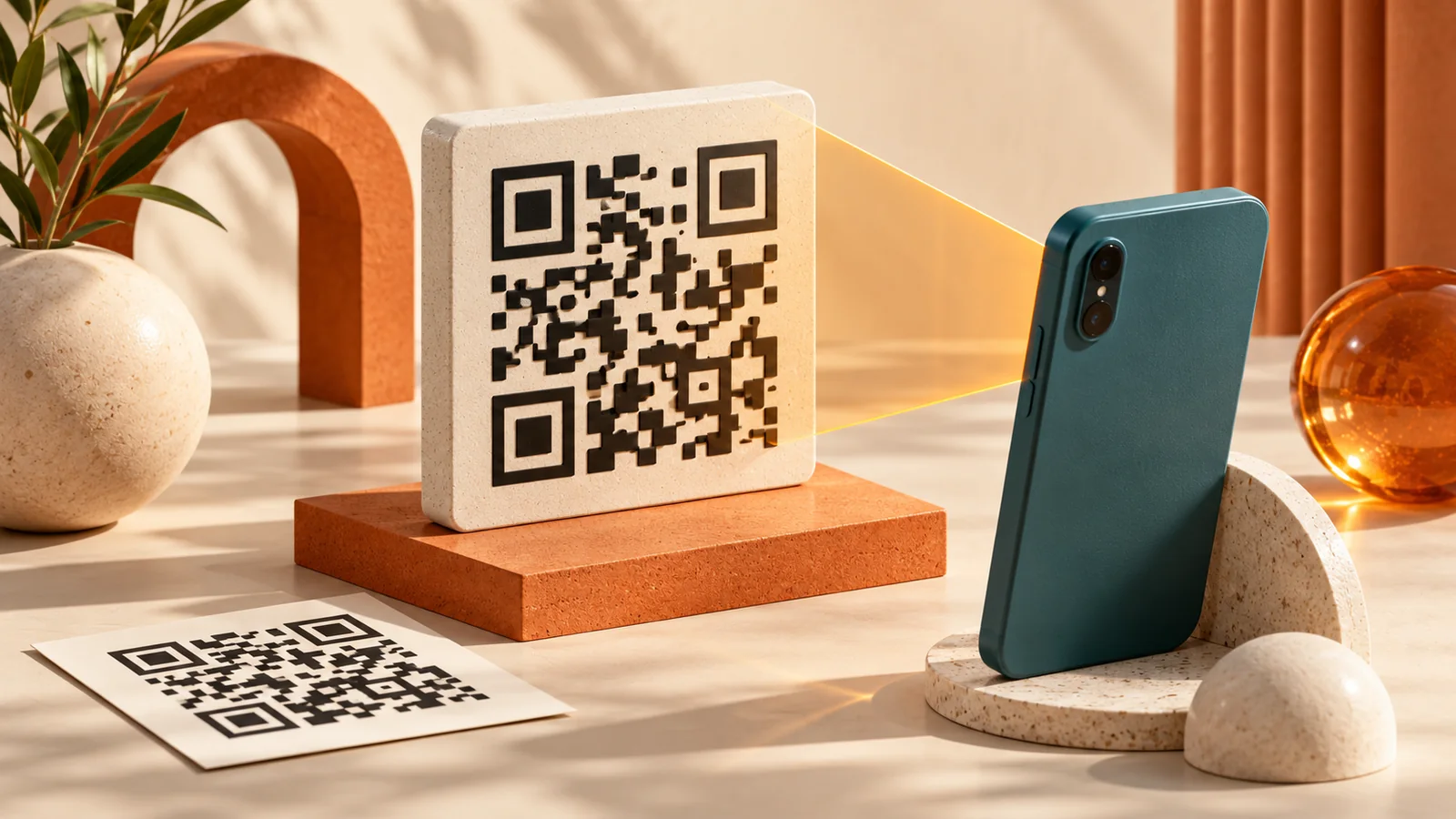
Static QR Codes: Expiration, Links and Printing Checks
Understand why static QR codes do not have an expiry timer, choose a stable URL and test the final PNG and printed design.
A static QR image has no expiry timer, but its destination or credentials can stop working. A QR code on a poster is useful only if the printed copy scans and the destination opens. Creating the image is the easy part; choosing the right contents and testing the final artwork prevent expensive reprints.
FormatOwl's QR code generator creates a PNG containing the information you enter. This tool is free without sign-up, with unlimited downloads.
Choose what the code should contain
| Your task | QR content | Check before generating |
|---|---|---|
| Link to a menu or page | Full URL | The page works without your login |
| Share guest Wi-Fi | Network name, security and password | Credentials match the guest network |
| Share contact details | Name, phone and email | The imported contact has the right fields |
| Display a short message | Plain text | The message fits the intended context |
For a website, open the destination in a private browser window first. A URL that works only in your signed-in session will not become public when you put it inside a QR code. Use the final HTTPS address and remove unnecessary parameters.
For network fields and an actual phone connection test, use the Wi-Fi QR tutorial. If the code is already on your screen, follow the image and screenshot scanning guide without a second device.
Understand static versus editable destinations
A static QR code stores its payload in the image. FormatOwl does not create an editable redirect service or a scan analytics dashboard. Changing the encoded URL requires generating a new image.
You can still change the content served at a URL you control. A code pointing to your own menu page can keep working while you update that page. The distinction is between changing the page and changing the address stored in the code.
There is no expiry timer embedded in this PNG. A destination can still expire, move or require authentication. For Wi-Fi, changing the network password makes an old code out of date.
Generate and test the PNG
- Open the generator and choose text, URL, Wi-Fi or contact content.
- Enter the details, then choose output size and error correction.
- Generate and download the PNG. Keep the white margin around the code.
- Open QR scanning, select the PNG and compare the decoded contents with your original input.
- Test the final poster or card on a phone at its actual display or print size.
Image decoding checks the payload; a real camera check tests contrast, blur, glare and scale. Try the camera from the distance a visitor will use. Do not stretch the code into a rectangle or place artwork over its modules.
Fix a code that will not scan
If the code scans from the original PNG but fails on the poster, inspect the design export. Downscaling, heavy compression and a clipped margin can make the final version harder to read. Return to the original PNG, give it more space and test again.
If it scans but opens the wrong page, the problem is the payload or destination. Copy the decoded URL rather than typing a remembered version. Confirm the domain and path before printing another batch.
Wi-Fi and contact codes expose the data they contain to anyone who scans them. Use guest network credentials for public distribution and include only the contact details you intend to share.
When a barcode is the better fit
A retail or inventory workflow may expect Code 128, EAN or UPC rather than QR. Use the barcode generator for a supported format and barcode scanner to inspect its value. Generating an image does not assign an official product identifier; use the identifier required by your own inventory or retail process.
Questions about static QR codes
Why did a static QR code stop working?
Separate failure to read the image from failure to open its destination. For the first, inspect the margin, sharpness and print. For the second, check page moves, domain availability and login requirements. A changed Wi-Fi password also makes an old network code outdated.
Can I change the URL after printing?
You cannot change an already-printed static payload. If you control the encoded web address, you can keep it and update the page it serves. Encoding a different address requires a new image and replacement printed copies.
Does higher error correction mean I can print it smaller?
Not automatically. Payload length, module size, contrast and scanning distance matter too. Test the final paper and size instead of relying on a universal minimum print-size claim.
Key takeaways
- Choose a stable destination before creating the image.
- Test both the downloaded PNG and the final printed design.
- Keep the surrounding margin and avoid distortion.
- Update the code when its encoded details change.
Start with one QR code, test it on your own phone, and then use the verified image in your design.
Author
Categories
More Posts
How to Create a Wi-Fi QR Code for a Guest Network
Create a Wi-Fi QR code from your network name, security type and password. Download a PNG, test a phone connection and prepare a guest Wi-Fi sign.

How to Scan a QR Code from an Image or Screenshot
Read a QR code from a saved image or screenshot without a second device. Decode locally, inspect the result and troubleshoot blur or missing edges.

How to Extract Images from a PDF as PNG Files
Extract embedded bitmap images from selected PDF pages, save PNG files or a ZIP, and distinguish image extraction from full-page rendering.
FormatOwl updates
Useful tools, practical tips
Get new FormatOwl tools, improvements and how-to guides.