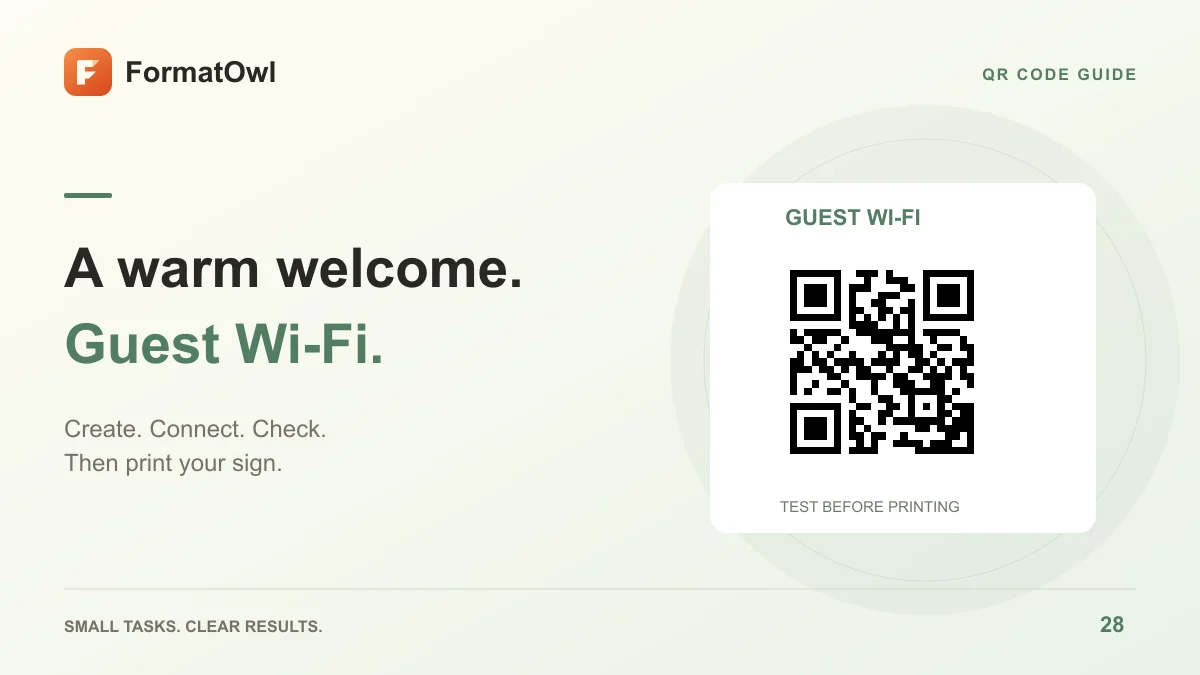
How to Create a Wi-Fi QR Code for a Guest Network
Create a Wi-Fi QR code from your network name, security type and password. Download a PNG, test a phone connection and prepare a guest Wi-Fi sign.
A Wi-Fi QR code stores a network name, security type and password so a compatible phone can offer to join the network after scanning. Use FormatOwl's QR generator, choose Wi-Fi, enter the guest network details and export a PNG. No account is required.
The generator creates the code; it does not create a guest network or change router settings. Confirm that the guest network already works by joining it normally before making a sign.
Collect the correct network details
| Field | What to enter | Common mistake |
|---|---|---|
| Wi-Fi name | The network's exact SSID | Using a friendly label instead of the actual network name |
| Security | WPA / WPA2, WEP or Open network as appropriate | Choosing an option that does not match the router |
| Password | The current network password | A trailing space or an old password |
| Size | A PNG size suitable for your design | Shrinking the exported code until it is hard to scan |
The current generator does not expose hidden-network or enterprise-login settings. Do not invent values for those networks and expect universal compatibility. Device support for joining from a QR code also varies; a successful image decode is only the first test.
Generate and verify the code
- Open the QR code generator and select Wi-Fi under Content type.
- Enter the SSID, choose the matching security option and enter the password.
- Start with the default 512 px size and M error correction. Generate the code and download the PNG.
- Use image QR scanning to inspect the decoded text. Check the network name and credentials carefully.
- On a phone near the router, scan the PNG and try joining the network. Use a device that is not already connected so the test checks the code rather than a remembered connection.
- Place the PNG in your sign, preserving its white margin. Print a test at the intended size and repeat the phone connection check.
For a guest room or reception desk, put the network name in readable text beside the QR code. This helps visitors distinguish nearby networks and gives you a quick way to check that the sign refers to the right one.
What the exported code contains
Wi-Fi QR data uses a structured text payload containing the SSID, security and password. FormatOwl escapes reserved characters when constructing that payload; enter the real values in the fields rather than manually adding escape characters.
Anyone who can read the code can recover the credentials. Use a guest network intended for visitors, and share the sign only with the people who should have those details. QR encoding is not encryption. A code does not hide a password from someone who decodes it.
Questions about Wi-Fi QR codes
Does the QR code expire?
There is no expiry timer in the PNG. It becomes outdated if the network name, password or security settings change. Generate a replacement and remove old printed copies after such a change. The static QR guide explains this distinction.
Why can the image be decoded but the phone will not connect?
Recheck the exact SSID, password, security type, signal and device support. A scanner can read valid text even when the credentials are wrong or the phone cannot join that network.
Can I add a logo or track scans?
This generator exports a static PNG and does not provide a logo overlay, editable redirect or scan dashboard. Keep the code unobstructed and test the final sign rather than assuming error correction will repair every design change.
Create one guest Wi-Fi code, verify an actual connection, and print only after that test passes.
More Posts
Static QR Codes: Expiration, Links and Printing Checks
Understand why static QR codes do not have an expiry timer, choose a stable URL and test the final PNG and printed design.

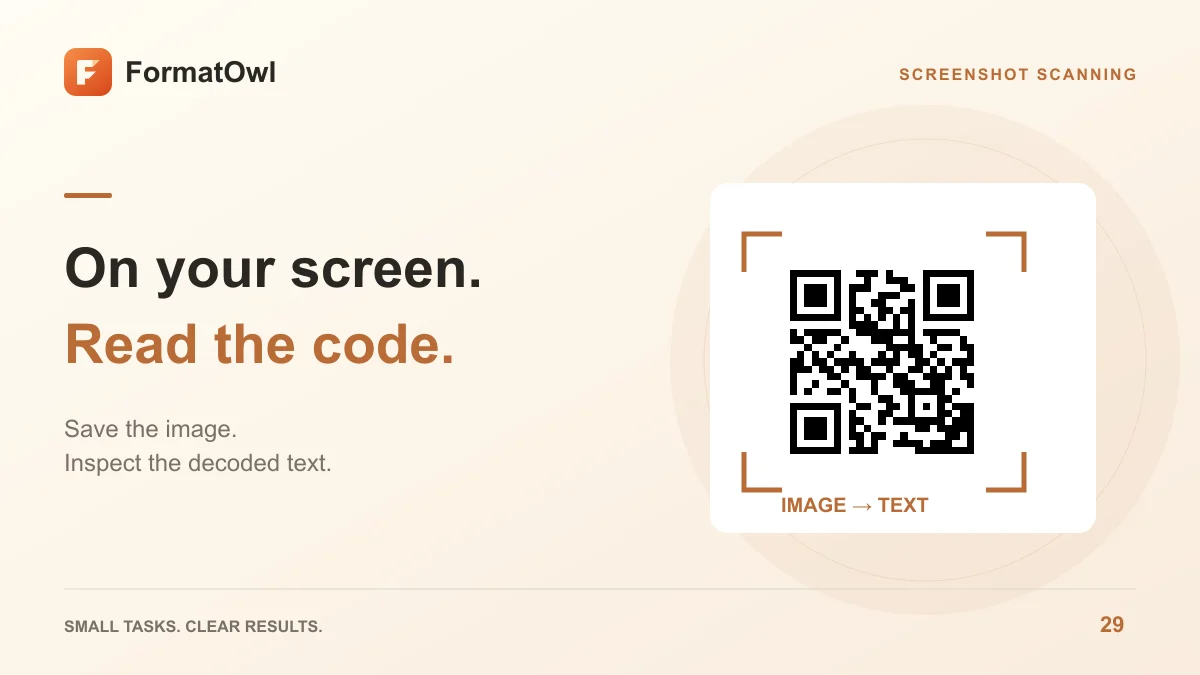
How to Scan a QR Code from an Image or Screenshot
Read a QR code from a saved image or screenshot without a second device. Decode locally, inspect the result and troubleshoot blur or missing edges.

How to Extract Images from a PDF as PNG Files
Extract embedded bitmap images from selected PDF pages, save PNG files or a ZIP, and distinguish image extraction from full-page rendering.
FormatOwl updates
Useful tools, practical tips
Get new FormatOwl tools, improvements and how-to guides.