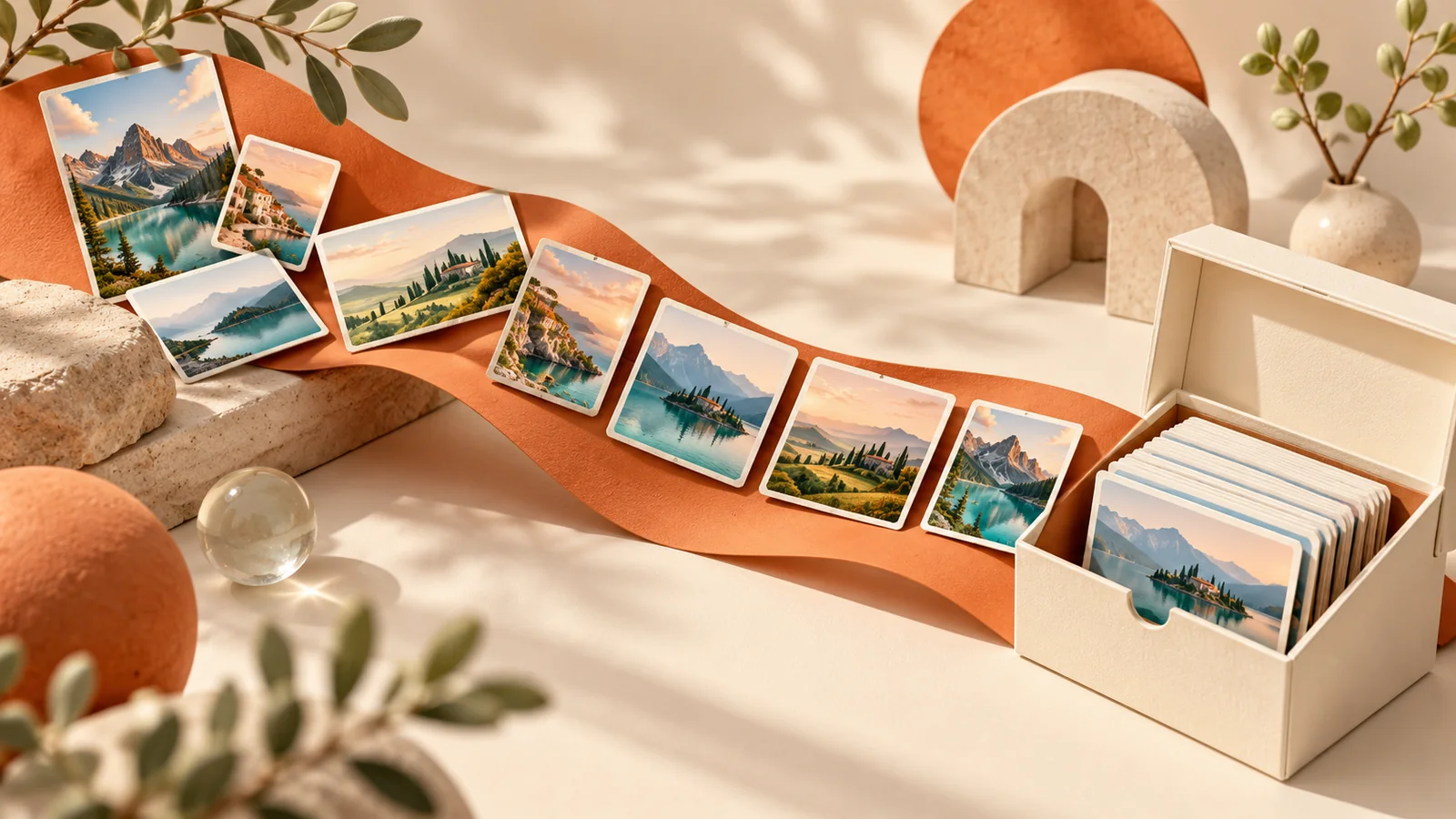
Batch Convert and Resize Images Without Uploading Your Files
Convert a folder of JPG, PNG, WebP or AVIF images, keep proportions when resizing, review failures and download a ZIP from your browser.
Twenty product photos should not require twenty trips through the same converter. You need one set of settings, a way to check the exceptions, and a download you can reconcile with the original folder.
FormatOwl puts Single file and Batch on the same image tool page. Open image conversion in Batch mode to change formats, batch compression to reduce bytes, or batch resizing to change dimensions. Your files are processed on your device without sign-up.
Choose the operation before choosing the files
A format, a pixel size and a file size are three different requirements. Write down which one the receiving website or app actually specifies.
| Your requirement | Start here | What to check afterward |
|---|---|---|
| Convert WebP or AVIF to JPG | Image conversion, Batch | Accepted format and background color |
| Make several photos smaller in bytes | Image compression, Batch | Actual output sizes and visible quality |
| Fit landscape and portrait photos inside a box | Image resizing, Batch, aspect ratio locked | Each file's dimensions and proportions |
| Deliver several results together | Download ZIP after processing | Extracted file count and filenames |
These are separate operations. Choosing a folder does not automatically chain conversion, resizing and compression into a saved recipe. Save an intermediate result when a task needs another tool.
For format decisions, see JPG, PNG, WebP and AVIF compared. For a byte limit such as 100 KB, use the compression guide; the image tools do not guarantee an exact target size.
Test three representative images first
Start with a photograph, a transparent image and a screenshot containing small text. If your collection has only photos, choose one bright scene, one dark scene and one with fine detail.
- Open the relevant tool and select Batch.
- Choose several supported files, or use the folder option where available.
- Review the selected list and the limits shown for your account.
- Choose the format, quality or dimensions the job needs.
- Process the sample and open each downloaded result.
- Use the same settings for the remaining files only after the samples look right.
Supported inputs are static JPG, PNG, WebP and AVIF. A folder can also contain unrelated files; inspect the selection rather than assuming every item is a valid image. This workflow does not preserve animation frames.
Batch mode shares the existing tool's plan permissions. Switching tabs does not unlock a Pro operation or increase your input allowance. The pricing page and the access panel show the current limits.
Resize mixed proportions without stretching
Suppose you want two images to fit within 1,600 × 1,600 pixels. A 4,000 × 3,000 landscape image becomes 1,600 × 1,200; a 3,000 × 4,000 portrait image becomes 1,200 × 1,600 when the aspect ratio is locked.
Both results fit the same bounds, but neither becomes a square. This is useful for a gallery that accepts different proportions. If a destination requires a square composition, crop the image deliberately before resizing.
Unlocking the aspect ratio requests the exact width and height, which can stretch the subject. Check a face, a circle or a product label in the output: distortion is often easier to spot there than in a landscape.
The interactive preview can be smaller than the exported image. Use the downloaded file to check final dimensions and sharpness, especially for screenshots.
Preserve transparency deliberately
JPG output fills transparent regions with white. That may be acceptable for a product photo on a white listing page, but a transparent logo will lose its transparent background.
Choose PNG, WebP or static AVIF when the destination supports the transparency you need. PNG compression uses a lossless optimization path; a quality slider for a lossy format does not have the same meaning as PNG optimization.
Do not assume that converting a JPG to PNG restores previously lost detail. Keep the best original available so future exports can start from it.
Image export is not a metadata archiving workflow. It does not promise to retain camera information or every embedded profile. If those details matter, keep the originals and inspect the exported metadata separately.
Review successes, failures and the ZIP
Files are processed sequentially to limit the number of active jobs. Completed outputs still occupy memory, so a smaller batch can be more practical than selecting everything on a mobile device.
A failed input does not mean all the successful results should be discarded. Check the individual error, confirm that the source opens normally, and retry that file separately with supported settings. Cancelling stops further work while keeping completed results available.
Before downloading a ZIP, compare the successful-result count with your selected-file count. After extracting it, open a sample from the beginning and end of the batch and inspect any renamed files. A result archive is a bundle of outputs, not a backup of the original folder hierarchy.
The ZIP itself has packaging overhead. For a per-image upload limit, compare each extracted image with the limit rather than the size of the archive.
Keep the local workflow reproducible
For a recurring job, keep a short note such as “WebP, quality 80%, maximum dimensions checked in the receiving app.” Include the destination requirement and a representative source, rather than relying only on a setting that happened to work once.
Source files remain local, but account checks and engine downloads still need network access. The workspace does not automatically save a project to the cloud. Download the results before refreshing or leaving; the privacy guide explains the distinction.
Key takeaways
- Use Batch inside the existing convert, compress or resize tool.
- Test representative inputs before processing the full folder.
- Keep the aspect ratio locked when mixed proportions should fit common bounds.
- Check each failure and reconcile the ZIP with successful outputs.
Start with three images in Batch conversion, then expand the job once the downloaded files meet your requirements.
More Posts

How to Extract Images from a PDF as PNG Files
Extract embedded bitmap images from selected PDF pages, save PNG files or a ZIP, and distinguish image extraction from full-page rendering.

How to Convert PNG to SVG: Trace Logos into Editable Paths
Trace a PNG into SVG paths in your browser. Choose colors and detail, inspect the result, and understand white backgrounds and tracing limits.
How to Resize PDF Pages to A4 or Letter
Change PDF page size to A4, Letter or custom dimensions. Fit and center content, choose page ranges and check orientation before printing.
FormatOwl updates
Useful tools, practical tips
Get new FormatOwl tools, improvements and how-to guides.