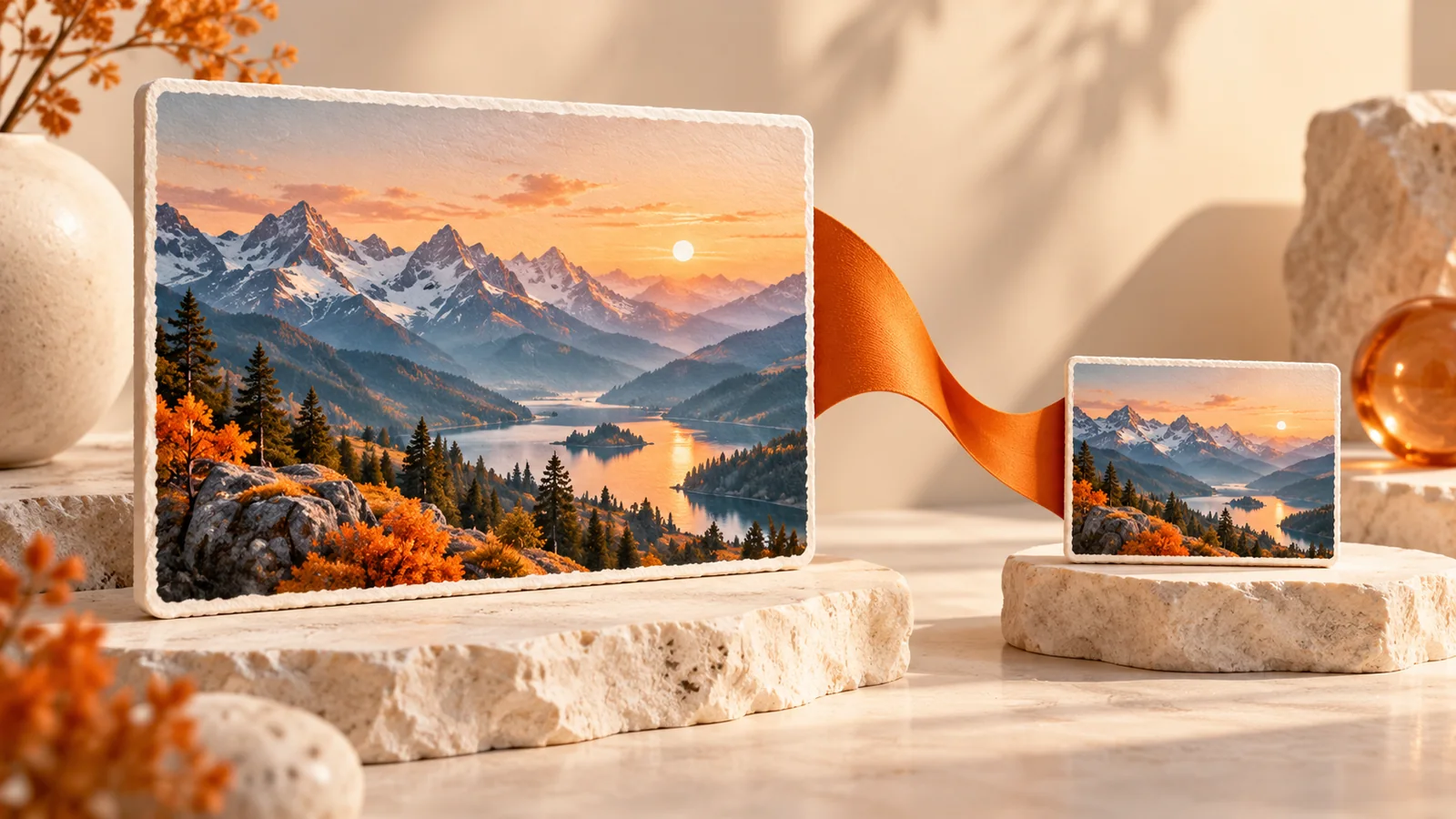
How to Compress an Image: Dimensions, Format and Actual File Size
Reduce image bytes with the right dimensions and output format, compare lossless PNG and lossy exports, and check batch results.
An image can be too large in pixels, too large in bytes, or both. An upload form might accept the dimensions but reject the file size. A website might accept the file yet display a photo at a fraction of its original resolution.
Use image resizing for dimensions and image compression for encoding choices. Decide what the destination needs before lowering quality.
Check the destination's requirements
| Requirement | What to change | What to verify |
|---|---|---|
| Exact width and height | Resize, or crop then resize | Pixel dimensions and proportions |
| File below a byte limit | Format and compression | Actual processed file size |
| Transparent background | PNG, WebP or AVIF output | Alpha at the subject edges |
| Accepted file extension | Convert to an accepted format | The receiving app opens it |
For illustration, reducing a 4,000 × 3,000 image to 2,000 × 1,500 reduces the pixel count from 12 million to 3 million. The encoded file will not necessarily shrink by exactly 75%, because content and encoding also matter.
Use a repeatable compression sequence
- Keep the original and note its dimensions and size.
- Crop unwanted borders if needed, then resize to suitable dimensions.
- Open the compressor and keep the original format or choose an output.
- Adjust quality for JPG, WebP or AVIF; PNG follows a lossless optimization path.
- Process, compare the actual sizes and inspect the downloaded image.
Keep-original-format mode is useful for a mixed batch. PNG optimization preserves pixels and transparency; if it cannot produce a smaller result, the original is kept. A JPG export fills transparent regions with white.
Aim below a limit without promising an exact target
A request such as “compress to 100 KB” is an output constraint, not a single quality setting. FormatOwl does not provide an automatic exact-byte target. Try suitable dimensions and quality, process the image, then compare its actual size with the limit.
Leave some margin and preserve the minimum dimensions required by the destination. If lowering quality makes small text unreadable, return to the original and reconsider dimensions or format instead of continuing to degrade the same output.
Compare details that reveal damage
Inspect text, thin lines, hair, gradients and high-contrast edges. Compare at the intended viewing size, and zoom into areas where artifacts would matter.
Interactive previews are bounded to 1,200 pixels on the long edge for responsiveness. They are useful for choosing settings, but preview bytes are not final file sizes. Export preserves the requested dimensions, so use the processed result for final checks.
A format that wins for one photo may lose for a diagram. The format selection guide explains how to choose a starting point without assuming one format is always smallest.
Handle batches and limits deliberately
Choose Single file for one image or Batch for multiple files on the same convert, compress or resize page. Open batch compression to apply one set of settings to the selected images. Conversion and compression process supported static images sequentially within plan limits. You can download successful results individually or together as a ZIP. If one input fails, inspect its format, dimensions and integrity before retrying it.
For a folder-sized task, the batch image guide explains sample selection, mixed proportions and reconciling the downloaded files.
A ZIP adds packaging overhead and should not be confused with the sum of image file sizes. Cancellation keeps completed results; review which inputs actually succeeded.
Free / Pro limits: images 10 / 20 MiB each, 50 / 100 MiB per task; PDFs 50 / 100 MiB and 100 / 200 pages; media 100 / 200 MiB; text, code and SVG 2 / 5 MiB; up to 10 / 50 inputs where supported. Workbench JSON: 2 / 32 MiB; other workbench operations: 1 MiB. Tool-specific safety limits still apply.
Key takeaways
Choose dimensions for the task, preserve required transparency and compare actual processed bytes. A useful smaller image is one that still works in its destination, not simply the one with the lowest quality setting.
More Posts

How to Extract Images from a PDF as PNG Files
Extract embedded bitmap images from selected PDF pages, save PNG files or a ZIP, and distinguish image extraction from full-page rendering.

How to Convert PNG to SVG: Trace Logos into Editable Paths
Trace a PNG into SVG paths in your browser. Choose colors and detail, inspect the result, and understand white backgrounds and tracing limits.
How to Resize PDF Pages to A4 or Letter
Change PDF page size to A4, Letter or custom dimensions. Fit and center content, choose page ranges and check orientation before printing.
FormatOwl updates
Useful tools, practical tips
Get new FormatOwl tools, improvements and how-to guides.